
Displaying MagicMirror on an Old Android Tablet
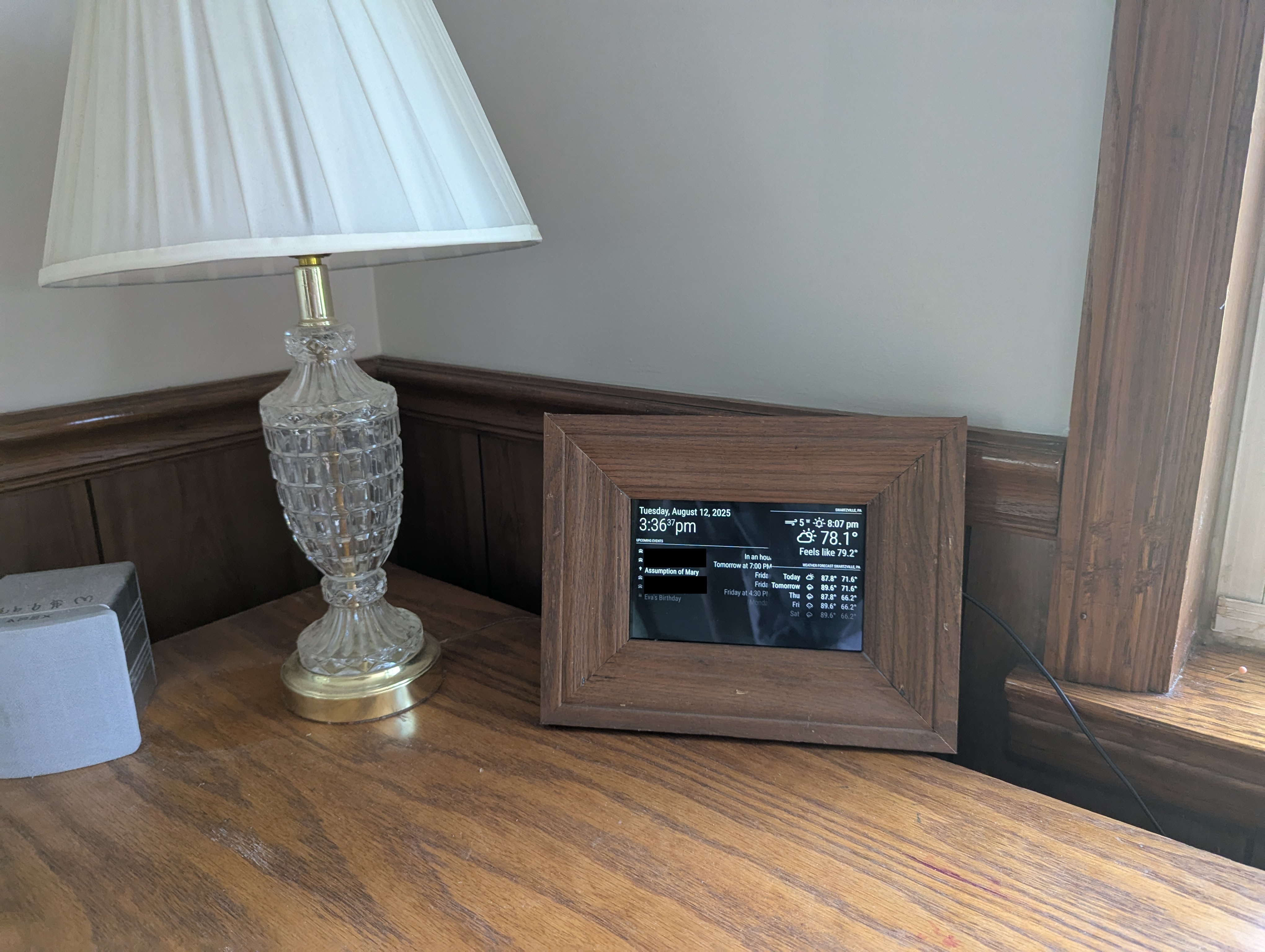
For quite a while I have had a smart display setup by my desk to show weather, calendar events, etc. It’s basically an old laptop with linux installed on it running MagicMirror. Plop a monitor on top of that and you have a very customizable smart display. But since MagicMirror also has functions as a server any device on the local network with a screen could in theory be another smart display. This is where I had the idea to use an old Android tablet to display some of the same information on the main smart display at another location in the house. It’s an old nexus 7 that I rooted and debloated but still to slow to use for most things. Then the touchscreen stopped working and so it wasn’t getting used for anything and was just collecting dust.
My goal was simple in theory, but a lot trickier in practice:
- Display my MagicMirror webpage (
http://192.168.x.x:8080) in fullscreen. - Hide all browser UI (no address bar, no buttons).
- Keep it running 24/7 like a real wall-mounted smart display.
Here are the things I tried and mistakes I made until I finally got it working using GeckoView.
Various 3rd Party Kiosk Apps
There are tons of 3rd party kiosk apps available for Android, such as Full Kiosk Browser, Surefox, and Fullscreen Browser. I gave them a try but all of them failed to properly load MagicMirror. I later found out this was probably because they were using android WebView.
Attempt #1 — Basic WebView App
I thought it would be easy enough just to make a custom android app that basically just opened my MagicMirror webpage in webview. With the help of ChatGPT I spun one up in no time. I started with Android Studio, an Empty Activity, and a WebView:
webView.getSettings().setJavaScriptEnabled(true);
webView.setWebViewClient(new WebViewClient());
webView.loadUrl("http://192.168.x.x:8080");
Result: The page wouldn’t fully load which I discovered was because the version of webview in Android 5.1 was too old to support JavaScript ES6 which is necessary for MagicMirror. I looked into updating webview but it soon became clear that that was no easy task if possible at all.
Attempt #2 — Launch Chrome in Kiosk Mode
Since webview wasn’t a viable option why not just use Chrome but launch it in kiosk mode. Brilliant, right? No.
I tried launching Chrome via ADB with kiosk flags:
adb shell am start -a android.intent.action.VIEW \
-d "http://192.168.x.x:8080" \
com.android.chrome \
--ez fullscreen true \
--ez kiosk true
Result: Chrome opened, but still had the address bar.
Turns out Chrome for Android ignores desktop-style kiosk flags.
Attempt #3 — Crosswalk Web Runtime
Next, I looked at Crosswalk, which bundles Chromium in your APK.
It’s perfect for old Androids… except Crosswalk was discontinued years ago.
I set up my build.gradle.kts like this:
repositories {
    maven {
        url = uri("http://download.01.org/crosswalk/releases/crosswalk/android/maven2")
        isAllowInsecureProtocol = true
    }
}

dependencies {
    implementation("org.xwalk:xwalk_core_library:23.53.589.4")
}
But the repo was flaky, and many versions were missing.
I tried hosting the .aar locally with:
repositories {
    flatDir { dirs("libs") }
}
dependencies {
    implementation(name = "xwalk_core_library-23.53.589.0", ext = "aar")
}
Result: All the links to Crosswalk’s repositories were broken. In theory Crosswalk could work if you find a working .aar, but it’s stuck on Chromium ~53, which is still outdated for modern MagicMirror modules.
Attempt #4 — Enter GeckoView (Final Solution)
With Chromium-based solutions hitting brick walls, I switched gears to Mozilla’s GeckoView
GeckoView is basically Firefox as an embeddable view.
It supports modern web standards, is actively maintained, and works on old Android versions.
1. Create an Empty Activity Project
In Android Studio:
- File → New → New Project
- Choose Empty Views Activity
- Name it
GeckoMM
2. Add GeckoView Dependency
In settings.gradle:
dependencyResolutionManagement {
    repositoriesMode.set(RepositoriesMode.PREFER_SETTINGS)
    repositories {
        google()
        mavenCentral()
        maven { url 'https://maven.mozilla.org/maven2/' }
    }
}
In app/build.gradle:
dependencies {
    implementation("org.mozilla.geckoview:geckoview:115.0.20230717105536")
}
(Use the latest GeckoView version supported by your Android Studio.)
3. Update AndroidManifest.xml
<uses-permission android:name="android.permission.RECEIVE_BOOT_COMPLETED" />

<application
    android:allowBackup="true"
    android:dataExtractionRules="@xml/data_extraction_rules"
    android:fullBackupContent="@xml/backup_rules"
    android:icon="@mipmap/ic_launcher"
    android:label="@string/app_name"
    android:roundIcon="@mipmap/ic_launcher_round"
    android:supportsRtl="true"
    android:theme="@android:style/Theme.NoTitleBar.Fullscreen"
    tools:targetApi="31">

    <receiver android:name=".BootReceiver" android:enabled="true" android:exported="true">
        <intent-filter>
            <action android:name="android.intent.action.BOOT_COMPLETED" />
        </intent-filter>
    </receiver>

    <activity
        android:name=".MainActivity"
        android:exported="true"
        android:label="@string/app_name"
        android:theme="@style/Theme.GeckoMM">
        <intent-filter>
            <action android:name="android.intent.action.MAIN" />

            <category android:name="android.intent.category.LAUNCHER" />
        </intent-filter>

    </activity>
</application>
4. MainActivity.kt
package com.example.geckomm

import android.app.Activity
import android.os.Bundle
import android.view.View
import org.mozilla.geckoview.GeckoRuntime
import org.mozilla.geckoview.GeckoSession
import org.mozilla.geckoview.GeckoView
import android.content.BroadcastReceiver
import android.content.Context
import android.content.Intent

class BootReceiver : BroadcastReceiver() {
    override fun onReceive(context: Context, intent: Intent) {
        if (intent.action == Intent.ACTION_BOOT_COMPLETED) {
            val i = Intent(context, MainActivity::class.java)
            i.addFlags(Intent.FLAG_ACTIVITY_NEW_TASK)
            context.startActivity(i)
        }
    }
}

class MainActivity : Activity() {
    private lateinit var geckoView: GeckoView
    private lateinit var geckoSession: GeckoSession
    private lateinit var geckoRuntime: GeckoRuntime

    override fun onCreate(savedInstanceState: Bundle?) {
        super.onCreate(savedInstanceState)
        window.addFlags(android.view.WindowManager.LayoutParams.FLAG_KEEP_SCREEN_ON)

        // Fullscreen setup
        window.decorView.systemUiVisibility = (
                View.SYSTEM_UI_FLAG_FULLSCREEN or
                        View.SYSTEM_UI_FLAG_HIDE_NAVIGATION or
                        View.SYSTEM_UI_FLAG_IMMERSIVE_STICKY
                )
        actionBar?.hide()

        // Create GeckoView and load it as content
        geckoView = GeckoView(this)
        setContentView(geckoView)

        // Setup GeckoSession and Runtime
        geckoRuntime = GeckoRuntime.create(this)
        geckoSession = GeckoSession()
        geckoSession.open(geckoRuntime)
        geckoView.setSession(geckoSession)

        // Load your local MagicMirror URL
        geckoSession.loadUri("http://192.168.x.x:8080")
    }
}
Step 6: Included features
Once GeckoView was working, I added:
- Autostart on reboot (via a BootReceiver).
- Keep screen on with:
window.addFlags(android.view.WindowManager.LayoutParams.FLAG_KEEP_SCREEN_ON)
Because of the poor battery of the tablet I will probably add a feature to turn off the display at night and turn it back on in the morning.
- Night power saving (turn screen off at 22:30, back on at 6:30 via root
input keyeventcommands in a scheduled script).
Edit MagicMirror CSS
Because the tablet screen is a lot smaller than the main smart display, I had to find a way to remove some of the modules and reduce the font size on the tablet’s display without affecting the main display. Unfortunately MagicMirror doesn’t really have a built in way to do this since it isn’t really meant for running multiple displays off of one server. So I had to edit the custom.css file in MagicMirror.
I used a media query so that the css would only apply to the tablet.
@media (max-width: 1000px) {
    .module.MMM-Flights {
        display: none;
    }
    .module.MMM-MotionDetector {
        display: none;
    }
    .module.newsfeed {
        display: none;
    }
    .module.MMM-Dad-Jokes {
        display: none;
    }

    .xsmall {
      font-size: 20px;
    }
    .small {
      font-size: 25px;
    }
    .medium {
      font-size: 35px;
    }
    .large {
      font-size: 70px;
    }
    .xlarge {
      font-size: 80px;
    }
}
Conclusion
After hours of trial and error with outdated WebViews, Chrome kiosk hacks, and Crosswalk dead-ends, GeckoView turned out to be the perfect solution.
Now my old Android tablet:
- Auto-launches GeckoMM when the system boots up.
- Shows it fullscreen with no UI
- Handles all modules flawlessly
If you’ve got an old tablet lying around, this method can turn it into a smart display without buying new hardware.